How to Create a 3D Figurine from a Selfie with Figurines App
Step-by-step tutorial on turning any selfie into a custom 3D figurine using the Figurines iOS app. Create dancing, painting, or gaming poses in seconds.
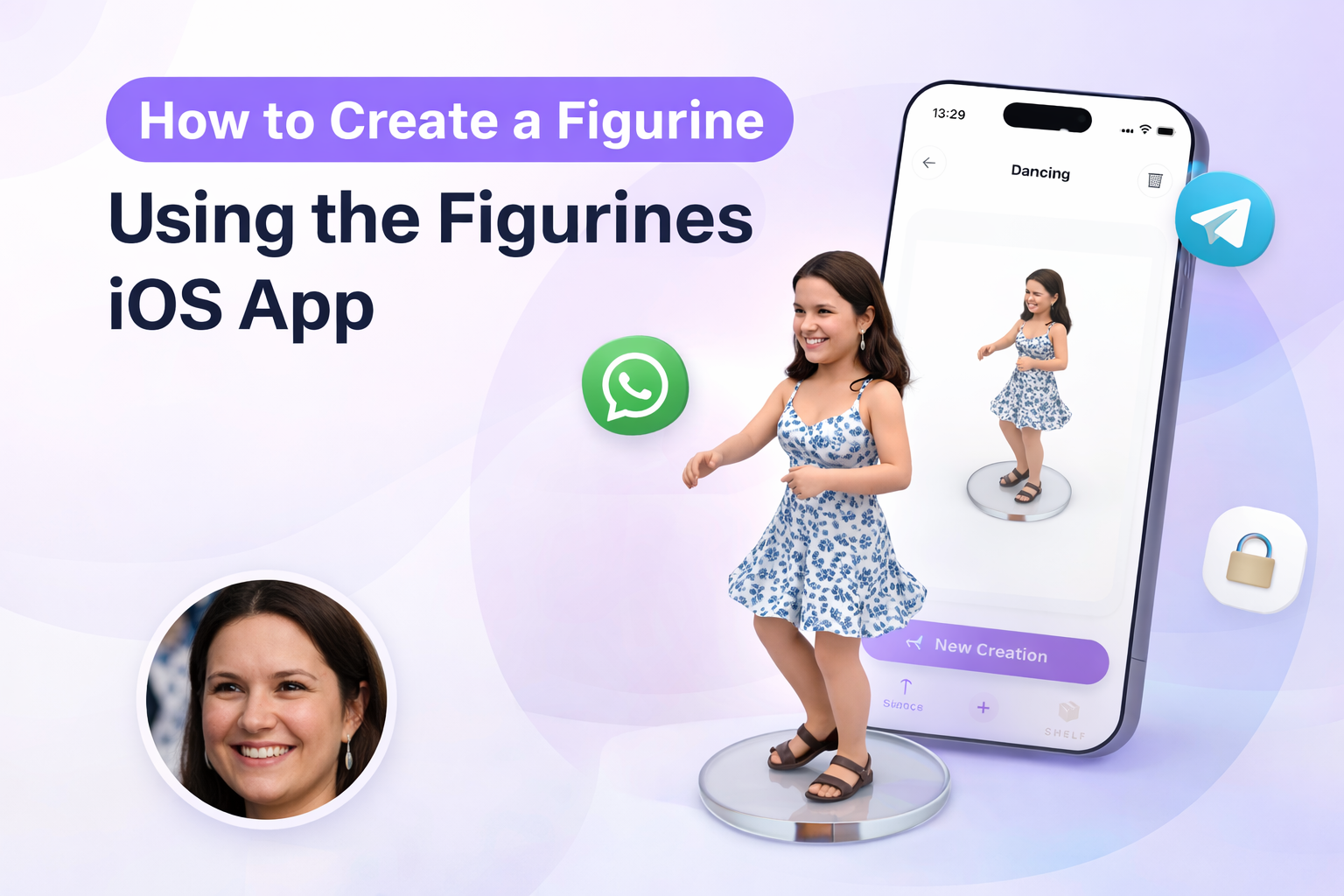
Ever wanted to see yourself as a tiny 3D action figure? Maybe dancing, painting, or striking a heroic pose? The Figurines app makes it happen in under a minute.
In this tutorial, I'll walk you through the entire process of creating a custom 3D figurine from a selfie. No design skills required. No complicated software. Just your iPhone and a photo.
Download Figurines: App Store
What You'll Need
- An iPhone or iPad running iOS 15.1 or later
- The Figurines app
- A selfie or photo with a clear view of your face
That's it. The app handles everything else.
Step 1: Open Figurines and Start a New Creation
When you first open the app, you'll see the home screen with a prominent "New Creation" card. This is your starting point.
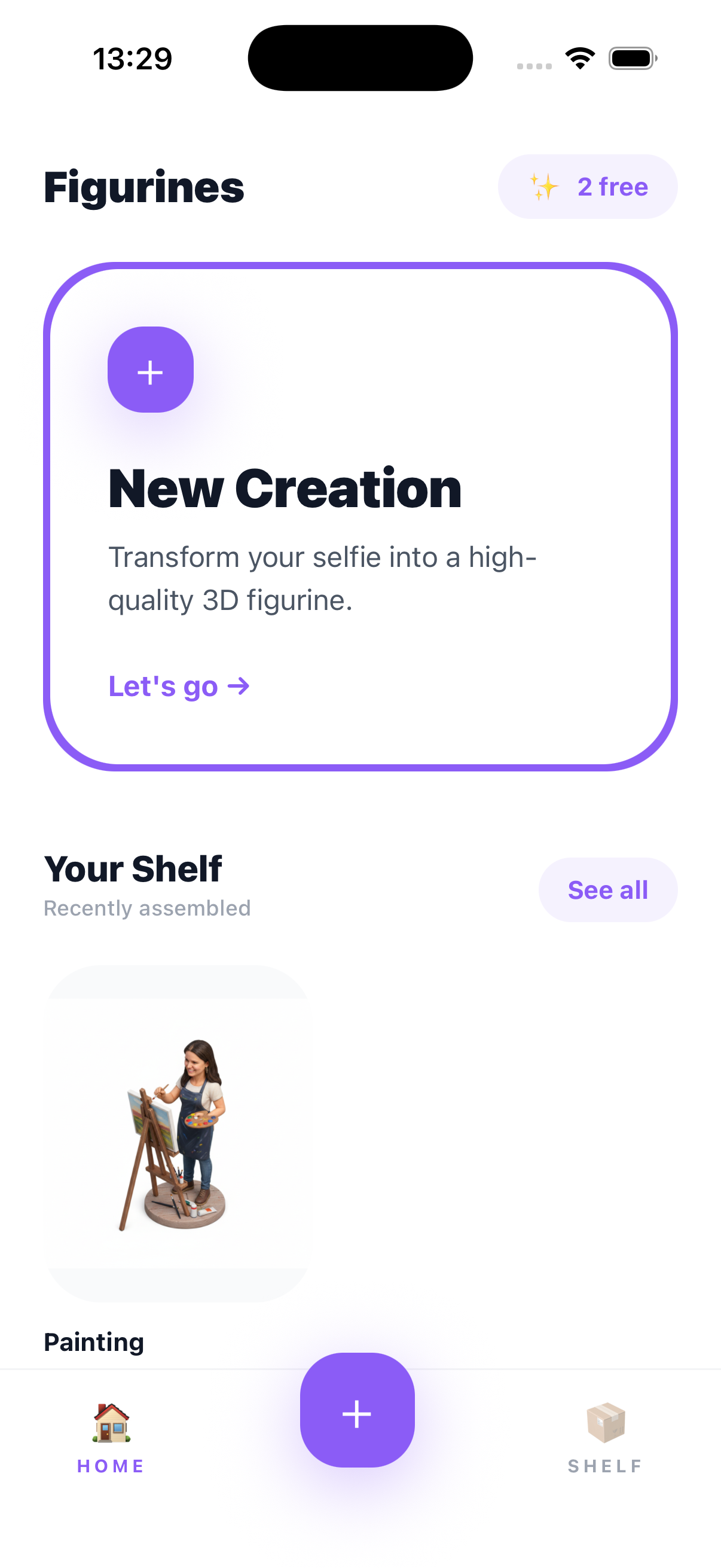
Tap "Let's go" to begin. You'll also notice "Your Shelf" below—this is where all your finished figurines live. But first, let's make one.
Step 2: Select Your Photo
The app opens your camera roll. Pick any photo where your face is clearly visible. Front-facing selfies work best, but the AI is surprisingly good at handling different angles.
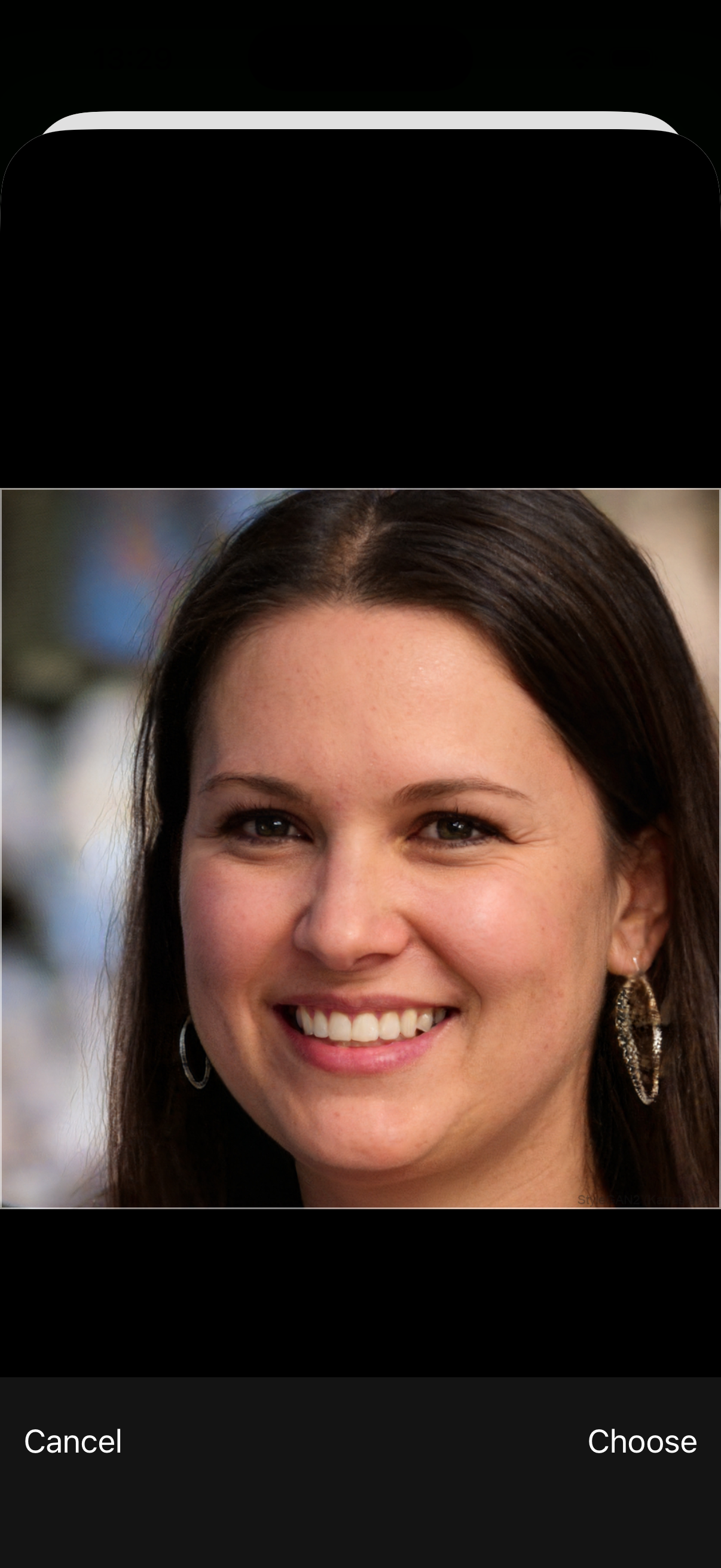
For this tutorial, I'm using a standard portrait photo. The app shows a preview so you can make sure it detected your face correctly. If it looks good, tap "Choose" to continue.
Pro tip: Photos with good lighting and a clear view of your face produce the best results. Avoid heavy shadows or photos where your face is partially obscured.
Step 3: Pick an Activity (This Is the Fun Part)
Here's where Figurines gets interesting. Instead of just creating a static 3D model, you choose an activity that determines your figurine's pose and scene.
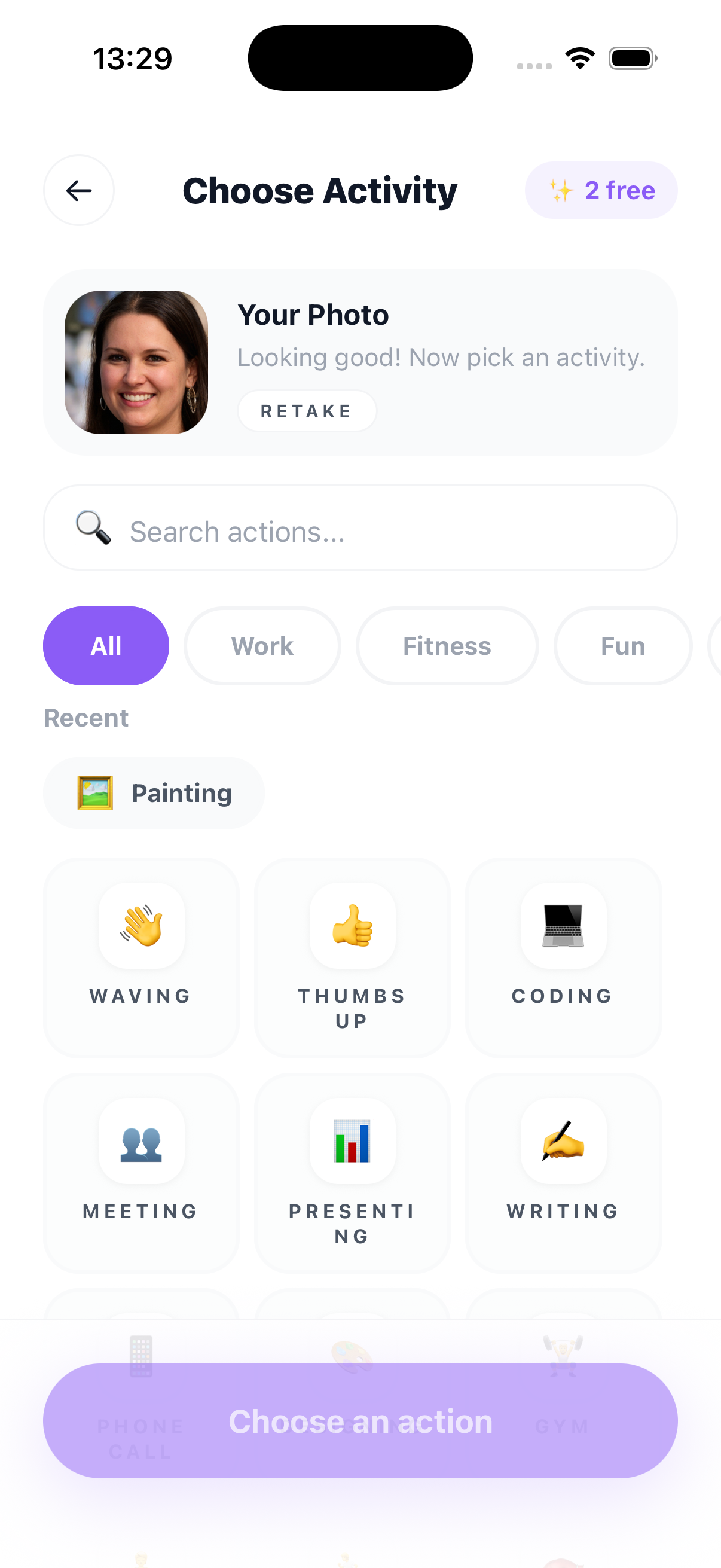
The options are organized into categories:
- Work: Coding, Meeting, Presenting, Writing
- Fitness: Swimming, various sports poses
- Fun: Dancing, Gaming, Karaoke, Movies, Party, Selfie
Scroll through the grid to find the perfect pose. There are dozens to choose from.
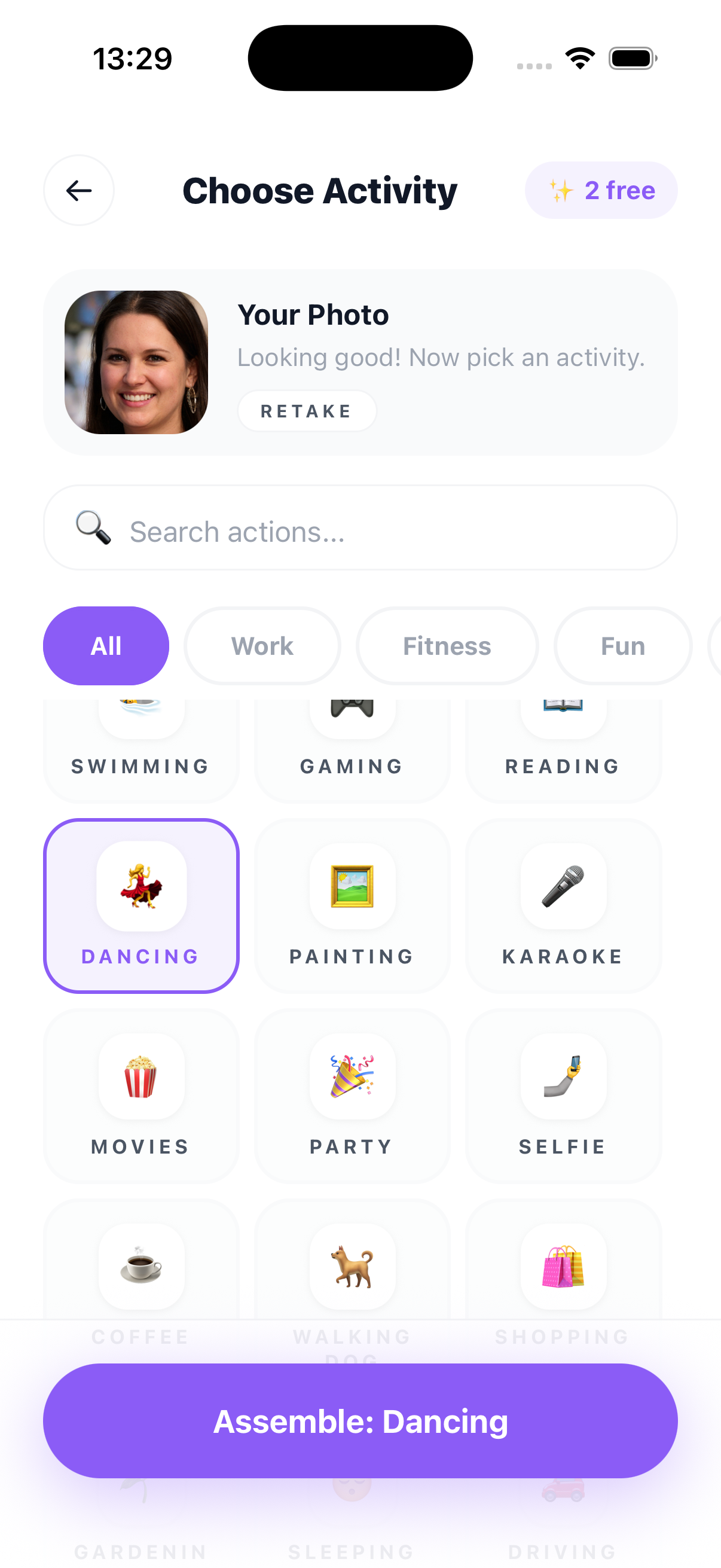
I'm going with Dancing because who doesn't want to see themselves busting a move as a 3D figurine? Tap your chosen activity, then hit the purple "Assemble" button at the bottom.
Step 4: Watch the AI Magic Happen
This is where Figurines earns its place on your phone. The app's AI analyzes your photo and generates a custom 3D figurine—and it only takes about 15 seconds.
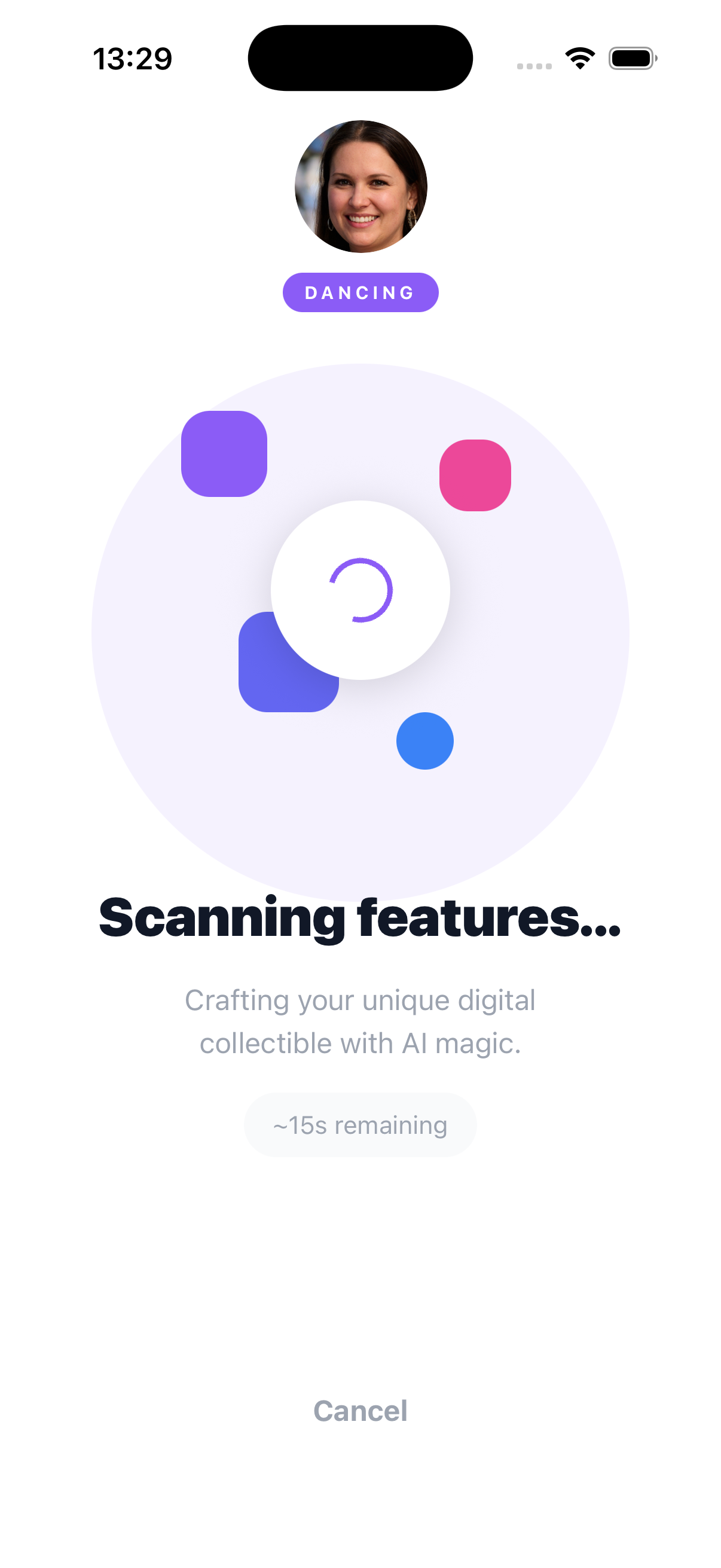
You'll see an animated loading screen that says "Scanning features..." while the AI does its thing. The app creates your figurine entirely on-device, so your photos never leave your phone. Privacy matters.
Step 5: Browse Your Figurine Variants
When the AI finishes, you get multiple variations to choose from. In my case, I got 4 different "Dancing" variants—each with slightly different poses and outfits.
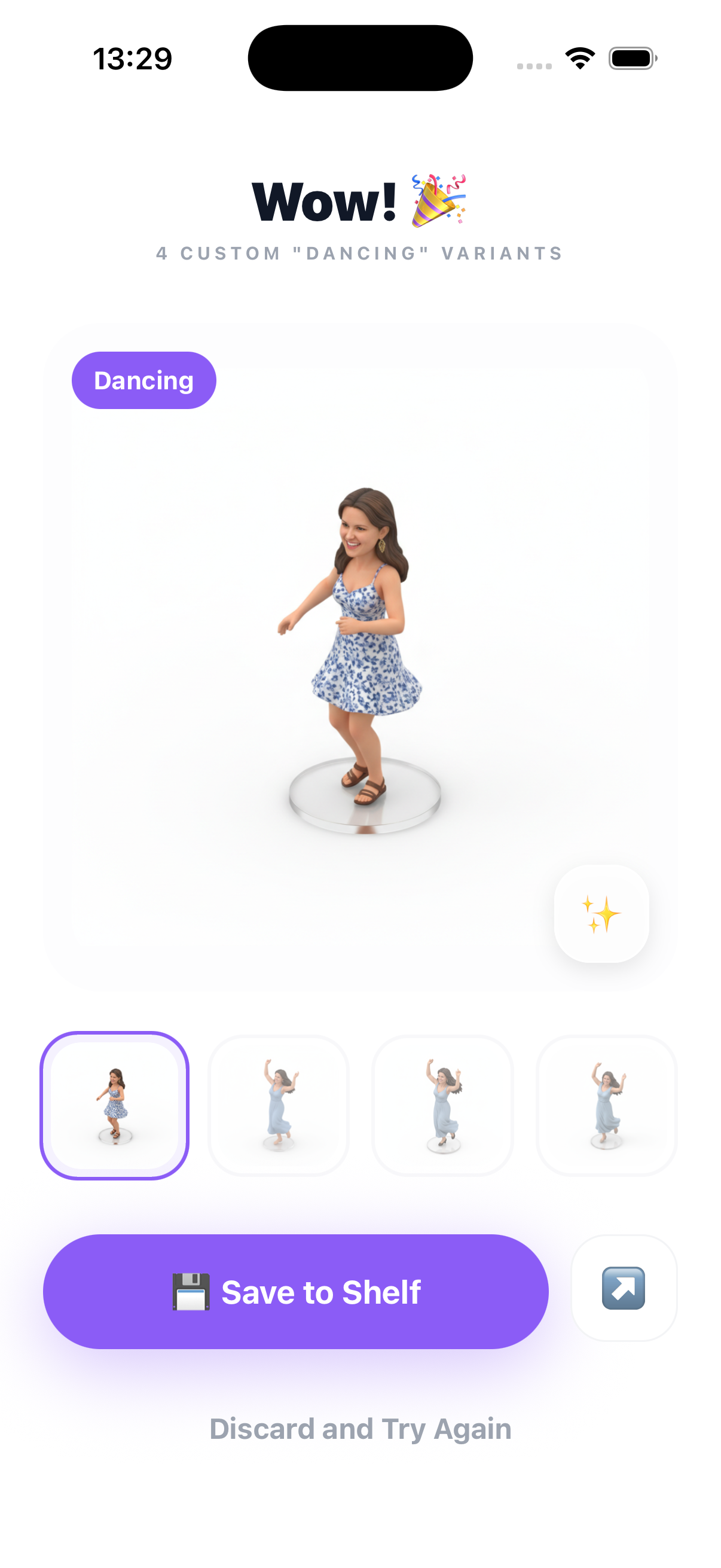
The thumbnails at the bottom let you flip between variants. The main preview shows a larger view of your selected figurine, complete with a subtle shadow that makes it pop.
Take your time here. Each variant has its own personality. When you find your favorite, tap "Save to Shelf" to keep it.
Step 6: Your Figurine Is Saved
Back on the home screen, your new creation now appears in "Your Shelf" alongside any previous figurines you've made.
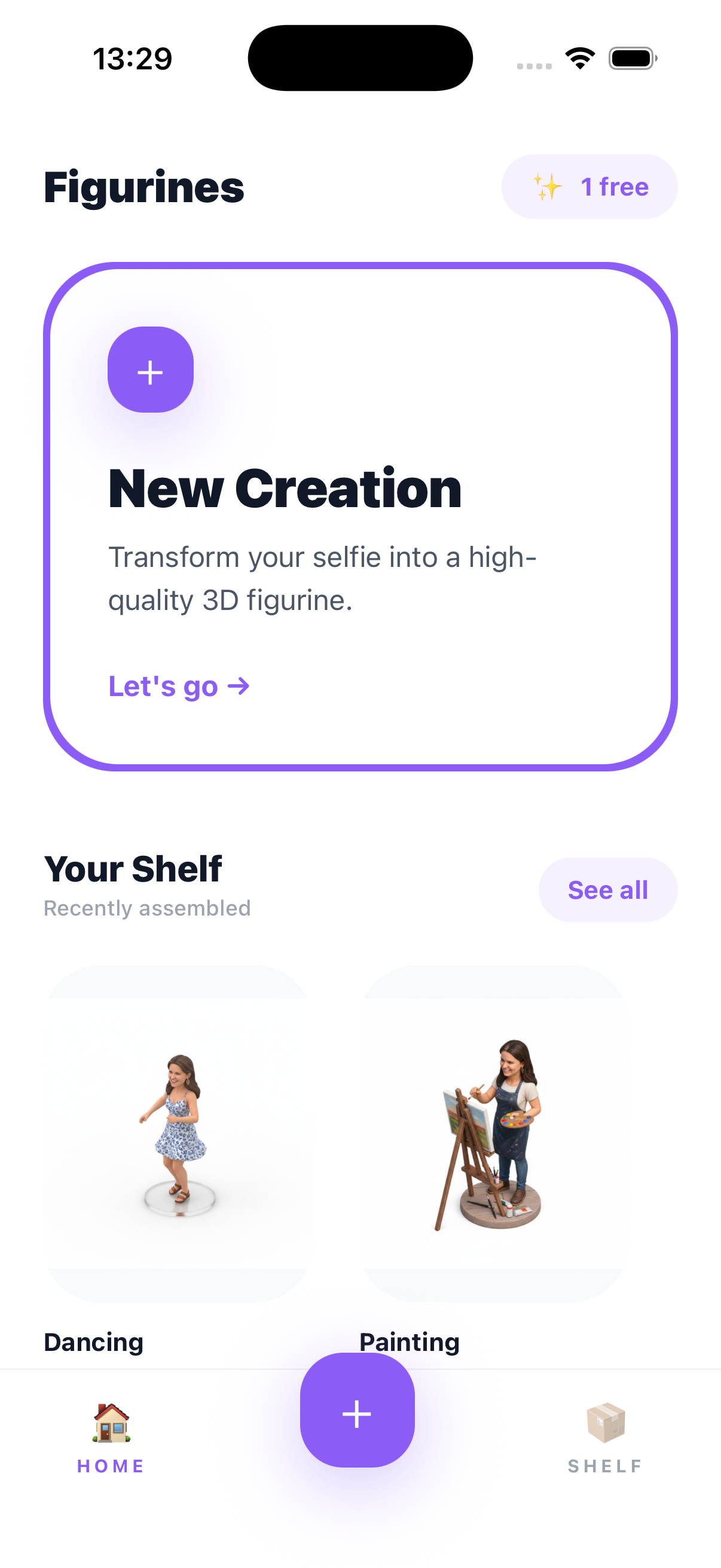
The app shows your figurines as a visual collection. Each one is labeled with its activity type (Dancing, Painting, etc.) so you can easily find them later.
Step 7: View Details and Share
Tap any figurine to see it in full detail. The detail view shows your figurine with metadata like the activity and creation date.
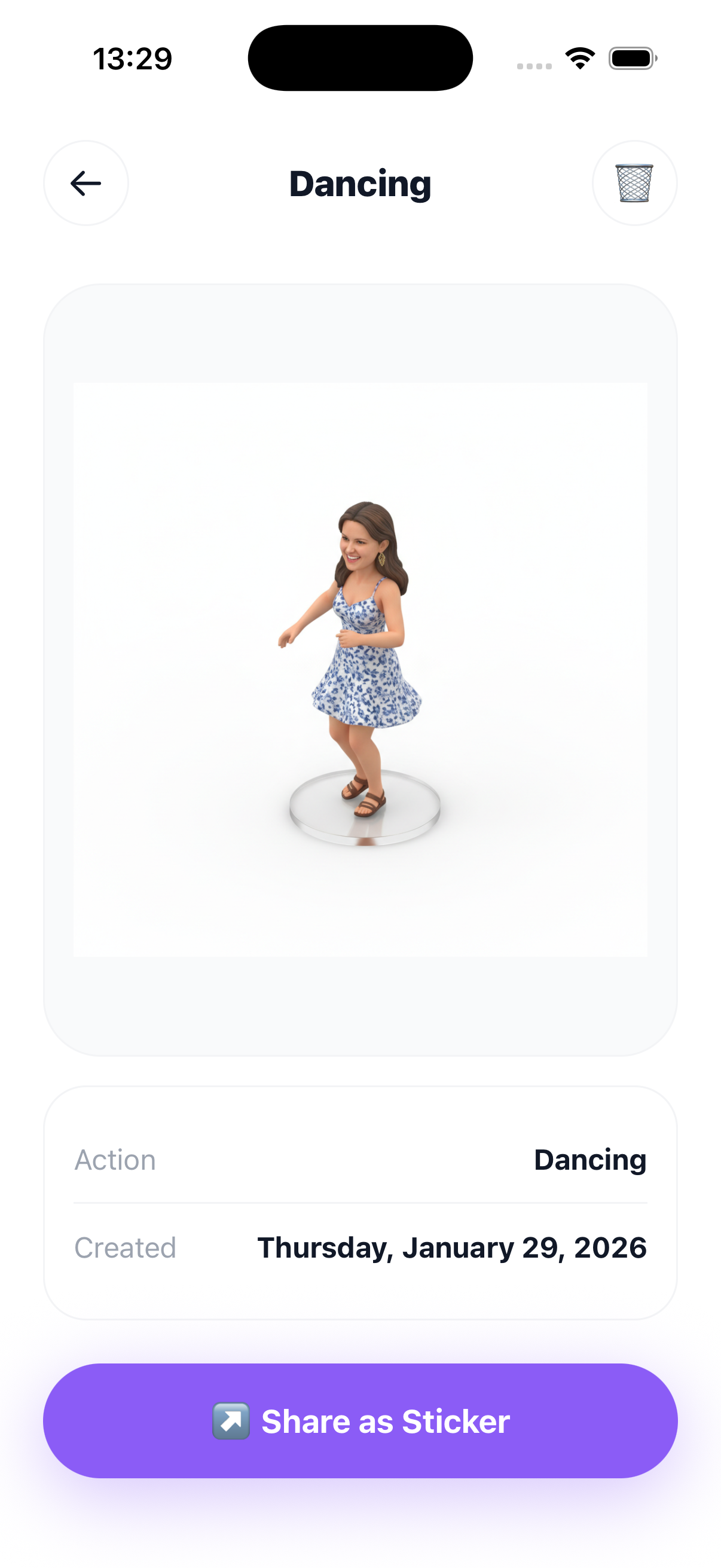
But here's the best part: the "Share as Sticker" button.
Step 8: Share Your Figurine as a Sticker
Tap "Share as Sticker" and you'll see options to add your figurine directly to your favorite messaging apps:
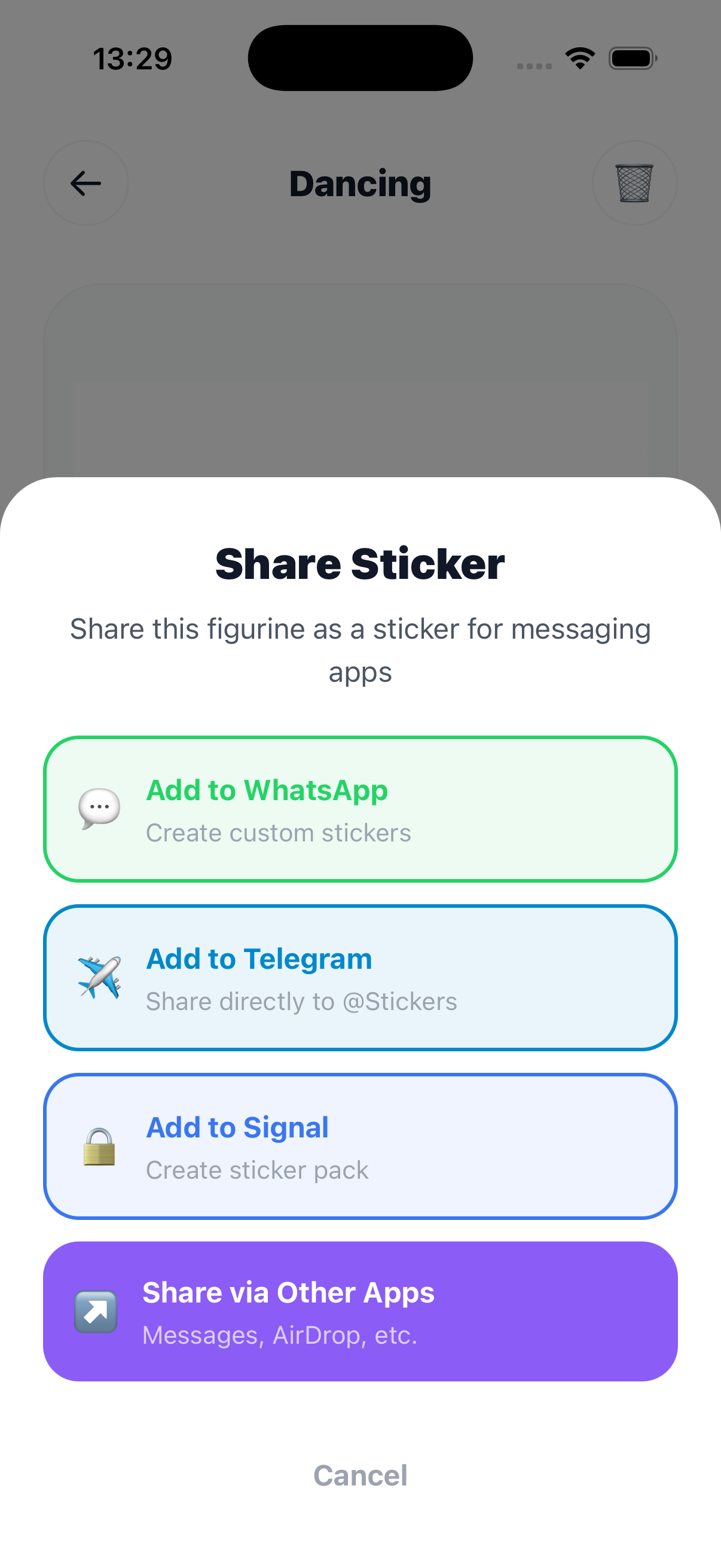
- WhatsApp – Create custom stickers
- Telegram – Share directly to @Stickers
- Signal – Create a sticker pack
- Other Apps – Messages, AirDrop, etc.
Imagine sending a sticker of yourself dancing to your friends. Or using your figurine as a reaction in group chats. It's ridiculous in the best way.
Tips for the Best Results
After creating dozens of figurines, here's what I've learned:
For the clearest face capture:
- Use photos with even lighting
- Face the camera directly
- Avoid sunglasses or hats that obscure features
For the most impressive figurines:
- Try different activities—some poses suit certain faces better
- Experiment with group photos (yes, it works)
- The AI handles different skin tones and features well
For sharing:
- Stickers work best in apps that support custom sticker packs
- The figurines export with transparent backgrounds
- They look great as profile pictures too
Why Figurines?
There are other "AI avatar" apps out there. Most of them produce generic results or require uploading your photos to cloud servers.
Figurines is different:
- Actually fun – The activity poses (dancing, coding, karaoke) make each figurine unique and shareable
- Instant stickers – Send yourself dancing to your group chat. Use your figurine as a reaction. It never gets old.
- 100% private – Everything happens on your device. Your photos never leave your phone.
- Collectible – Build a shelf of figurines in different poses. It's weirdly addictive.
It's the kind of app you open to make one figurine, then suddenly you've made twelve and sent them all to your friends.
Download Figurines
Ready to turn yourself into a 3D collectible?
Available for iPhone and iPad. Requires iOS 15.1 or later.
Building in Public
We're actively building, shipping, and experimenting. If you want to follow along, see what's coming next, or give feedback, you can find us here:
- Website: https://www.storqlabs.com/
- X (Twitter): https://x.com/StorqLabs